Member Management and Role-Based Access in MessMaster
In a spreadsheet, everyone with the link can edit everything. In MessMaster, access is controlled by role — and every action is authenticated and authorized before it reaches the database.
Contents6 sections
- Member: can view mess data, enter meals, submit payments, and update their own profile.
- Meal manager: can do everything a member can, plus manage members, rates, costs, payments, and month-end closure.
Your available controls and calculations depend on your role, mess status, deployment, and current server data. This guide uses fictional examples and does not replace the values shown in the app.
Guide status: Labels, permissions, calculation rules, rates, costs, exports, and available controls can vary by deployment and mess configuration. Use the current screen as the source to check and verify saved records after important changes.
Before you start
- You know whether you are a member or meal manager in the current mess.
- You understand that disabled buttons are a UI hint, not the only permission boundary.
- You know that the server validates every action independently.
The role hierarchy
MessMaster has three primary roles with escalating permissions:
- Owner — platform administrator. Manages the entire MessMaster platform, not a single mess. Logs in with bcrypt against
Owner.passwordHash, not Supabase. - Meal Manager — mess administrator. Creates the mess, manages members, sets rates, reviews payments, and executes month-end closure.
- Member — daily participant. Enters meals, views balances, submits payments, and reports mistakes.
Composite identity
A user is a member of a mess via MessMember with a composite key: mess_code + membership_id. A user can belong to multiple messes. Always scope mess data by messCode — never assume one user equals one mess.
What each role can do
Member
- View mess dashboard, balances, and meal history
- Enter and edit own meal entries
- View bazar and cost summaries
- Submit payments with transaction references
- Upload receipts (in the correct private mess context)
- Receive notifications
- Update own profile
Meal Manager
Everything a member can do, plus:
- Manage member roster (approve, reject, remove)
- Set and update meal rates, bazar duty, and shared costs
- Review and approve/reject payments
- Execute month-end closure and transition
- View and export statements
- Transfer role to another member
Owner
- Platform-level administration
- Approve or reject mess creation requests
- Manage platform-level settings
- View all messes (platform-level access)
- Not tied to a single mess
How permissions are enforced
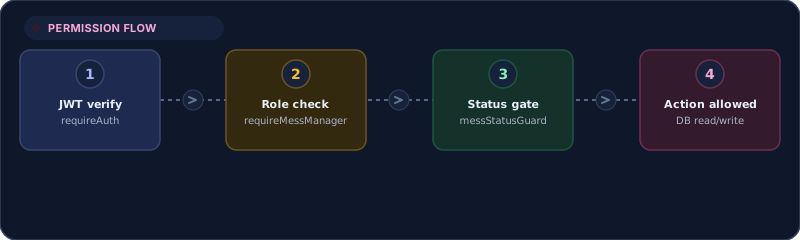
Permissions are enforced at three layers — not just by hiding buttons:
Layer 1: JWT verification
requireAuth verifies the JWT locally with jwt.verify(token, SUPABASE_JWT_SECRET). It does not call Supabase. If the token is invalid or blacklisted, the request is rejected before reaching any business logic.
Layer 2: Role guard
Role guards check whether the user has the required role for the action:
requireMessManager— mess admin accessrequireMessMember— member accessrequireOwnerRole— platform ownerrequireOwnerOrManagerRole— shared admin
Layer 3: Status guard
messStatusGuard() only admits requests when the mess status === "active". A soft-deleted, pending, or rejected mess cannot be operated on, even with a valid token and role.
Why three layers?
A disabled button in the UI is a convenience hint. The server independently validates every action. Even if someone bypasses the UI, the server rejects unauthorized requests. This defense-in-depth approach prevents privilege escalation.
Member lifecycle
Joining a mess
- A member creates an account via Supabase Auth.
- The member enters the mess code to request joining.
- The meal manager reviews the request.
- The manager approves or rejects the member.
- If approved, the member's status changes to active.
- The member can now enter meals and view mess data.
Member statuses
- Pending approval — waiting for manager review
- Active — full access to mess features
- Rejected payment — payment was rejected; limited access for recovery
- Removed — manager removed the member; access revoked
Status gate
requireAuth enforces a portal-member status gate. Unconfirmed members are rejected, with narrow exemptions for specific recovery flows (e.g., reading a rejection reason, restoring a soft-deleted mess).
Role transfer
A meal manager can transfer their role to another active member. This is useful when the current manager leaves the mess.
- The manager initiates a role transfer.
- The target member receives an offer.
- The member accepts or declines.
- If accepted, the roles swap — the old manager becomes a member, and the member becomes the manager.
- The transfer is logged and irreversible.
Important
Role transfer does not change ownership of the mess data. It only changes who has manager permissions. The mess itself remains unchanged.
Security model
Token invalidation
Token invalidation is layered on top of stateless JWTs:
- Logout → exact-token blacklist (60s TTL cache, positive hits only)
- Session revoke →
revoked-before:<uid>:<ts>marker compared to tokeniat - Owner sessions →
OwnerSessionrows add a second expiry check
Why no negative caching?
The blacklist caches positive hits only. Negative caching was deliberately avoided — it would let a just-logged-out token stay valid for the cache duration.
Rate limiting
Per-purpose rate limiters prevent abuse:
loginLimiter— login attemptsregisterLimiter— registration attemptspasswordResetLimiter— password reset requestsapiLimiter— general API callsemailTriggerLimiter— email sending
trust proxy is set to 1 (not true) in production so IP-keyed limiters see the real client behind Vercel/Render — a single hop.
Important: Role-based access is enforced by the server, not just the UI. Disabled buttons are a convenience, not a security boundary. Every action is validated against the JWT, role guard, and mess status guard before execution. Your available actions depend on your role, mess status, and current server configuration.


