How Monthly Account Closure Works in MessMaster
Month-end is the most stressful time for mess managers. In a spreadsheet, it means hours of checking formulas, verifying payments, calculating per-meal rates, and hoping nobody made an entry error.
Contents6 sections
- Member: enters meals and costs throughout the month, then waits for the manager to close the month.
- Meal manager: reviews all records, checks pending payments, previews the transition policy, and confirms the closure.
Your available controls and calculations depend on your role, mess status, deployment, and current server data. This guide uses fictional examples and does not replace the values shown in the app.
Guide status: Labels, permissions, calculation rules, rates, costs, exports, and available controls can vary by deployment and mess configuration. Use the current screen as the source to check and verify saved records after important changes.
Before you start
- All members have entered their meals for the month.
- All bazar and shared costs are recorded.
- All payments are reviewed (approved or rejected).
- You are the meal manager for the mess.
- The mess status is active.
What happens during closure
Monthly account closure is a review and confirm process, not a one-click operation. The manager reviews the month's records, previews how the transition will affect balances, and then confirms the policy.
Closure does three things:
- Freezes the current month's records — no more entries can be made for the closed month.
- Calculates final balances, per-meal rates, and individual shares.
- Transitions to the new month with a chosen policy for handling credits and dues.
The system performs the calculation. The manager makes the decision.
The closure steps
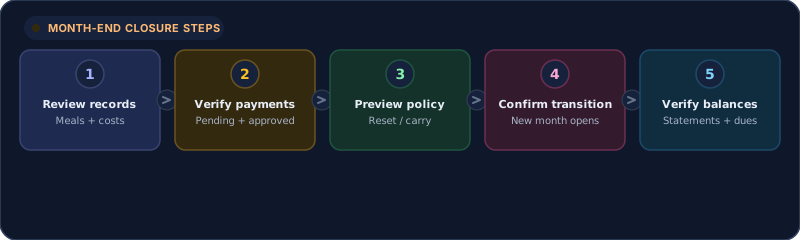
The month-end closure follows five steps:
- Review records — confirm all meals, bazar entries, and shared costs are entered correctly.
- Verify payments — check that all pending payments are approved or rejected. Rejected payments should be resolved.
- Preview policy — review how each transition policy will affect balances (see below).
- Confirm transition — select a policy and execute. The system freezes the month and opens the new one.
- Verify balances — reload and confirm the new month's opening balances, any payouts or collections, and the statement.
Timing
The transition should only be executed when all records are complete. Once confirmed, the previous month is frozen. Do not execute a transition only to create a screenshot — use a disposable test mess for learning.
Transition policies explained
MessMaster offers different transition policies for handling credits and dues at month-end. Read the current descriptions and consequences on the screen before confirming.
Zero reset
All balances reset to zero. Credits and dues from the previous month are cleared. Members who owe money must pay before the new month. Members with credit balances forfeit the credit.
Best for: Messes that settle all dues before the new month starts.
Carry over all
All balances — both credits and dues — carry forward to the new month. A member who owes 500 BDT starts the new month with -500. A member with +300 starts with +300.
Best for: Messes where members don't always settle before month-end, and rolling balances are expected.
Carry positives
Only credit balances carry forward. Dues are cleared — members who owe money must settle before the new month. Members with credit keep their positive balance.
Best for: Messes where dues are collected before transition but credits are allowed to roll.
The available policies and their exact behavior depend on the current deployment and configuration. Always read the preview before confirming.
What gets carried forward
Depending on the chosen policy:
- Meal counts — always reset. The new month starts with zero meals.
- Bazar and cost totals — always reset. New month starts with zero costs.
- Per-meal rate — recalculated for the new month based on new cost data.
- Balances — handled by the transition policy (see above).
- Member roster — unchanged. Members remain in the mess.
- Mess settings — rates, categories, and configuration persist.
What does NOT carry forward
- Individual meal entries (they are frozen in the old month's history)
- Bazar item details (they remain in the old month's records)
- Payment records (they remain in the old month's history)
- Pending payment statuses (rejected payments from the old month do not automatically carry over)
After the transition
Once the transition is confirmed:
- Reload the page to ensure you see the new month's state.
- Verify the new month's opening balances match the preview.
- Check any payout or collection records generated by the transition.
- Notify members that the new month is open for entries.
- Review the closed month's statement one final time.
If something looks wrong
If the new month's balances don't match the preview, do not execute another transition. Check:
- Whether all payments were properly reviewed before the transition.
- Whether any member entered meals after you started the review.
- Whether the correct policy was selected.
Contact support if the discrepancy persists. Do not attempt to reverse a transition without understanding the full impact.
Common closure mistakes
Closing before all entries are complete
If a member hasn't entered all their meals, the per-meal rate and individual share will be wrong. Wait until all members confirm their entries are complete.
Ignoring pending payments
Pending payments at transition time affect the balance calculation. Approve or reject all payments before starting the closure.
Not reading the policy preview
Each policy has different consequences. The preview shows exactly how balances will be affected. Read it. Do not assume "carry over all" means the same thing in every deployment.
Executing a transition on a test mess
If you're learning, use a disposable test mess. Do not execute a real transition on a live mess to see what happens.
Not verifying after transition
After confirming, reload and verify. If the balances don't match the preview, investigate before telling members the transition is complete.
Important: Month-end closure is a financial action that freezes records and transitions balances. Always preview the policy, verify the result after execution, and use a test mess for learning. Your available policies and their behavior depend on your deployment configuration.


