Understanding Payment Approval Flow in MessMaster
In most messes, payment tracking works on trust. A member says "I paid" and the manager believes them. When money goes missing, nobody knows who to ask.
Contents7 sections
- Member: submits a payment with a transaction reference and waits for manager review.
- Meal manager: reviews the payment details, approves or rejects with a reason, and the balance updates automatically.
Your available controls and calculations depend on your role, mess status, deployment, and current server data. This guide uses fictional examples and does not replace the values shown in the app.
Guide status: Labels, permissions, calculation rules, rates, costs, exports, and available controls can vary by deployment and mess configuration. Use the current screen as the source to check and verify saved records after important changes.
Before you start
- You know the correct payment method for your mess (bKash, Nagad, cash, etc.).
- You understand that a submitted payment is not the same as an approved payment.
- You know that rejected payments can be resubmitted.
The payment lifecycle
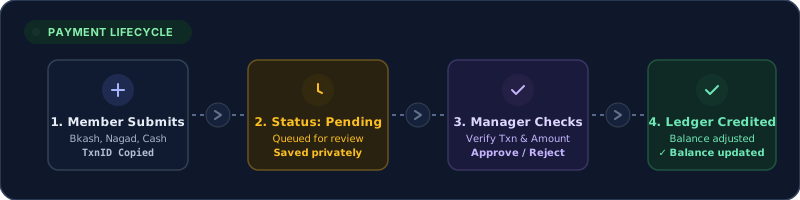
Every payment in MessMaster goes through a defined lifecycle:
- Member submits — the member enters the payment amount, method, and transaction reference.
- Pending status — the payment waits for manager review. The balance is not yet updated.
- Manager review — the manager checks the transaction reference and amount.
- Decision — the manager approves or rejects with a reason.
- Balance update — if approved, the member's balance is credited. If rejected, no balance change.
Key principle
A submitted payment does not change the balance. Only an approved payment does. The manager is the gatekeeper — the system enforces what the manager decides.
Submitting a payment
- Open the Payment section.
- Check your current balance (shown on the dashboard).
- Enter the payment amount in BDT.
- Select the payment method (bKash, Nagad, cash, etc.).
- Enter the transaction reference (TxnID, receipt number, or description).
- Optionally upload a receipt (in the correct private mess context).
- Submit the payment.
- The payment status shows "pending."
Transaction reference
The transaction reference is the key to verification. Without it, the manager cannot confirm the payment was actually made. Always include the reference from your payment provider (bKash TxnID, Nagad reference, cash receipt number).
What happens after submission
- The payment appears in the manager's review queue.
- The member sees the "pending" status.
- The balance is not yet updated.
- A notification may be sent to the manager.
Manager review
The meal manager reviews each pending payment:
- Open the payment review queue.
- For each pending payment, check:
- The amount matches the member's claim.
- The transaction reference is valid and traceable.
- The payment method matches the mess's accepted methods.
- The receipt (if uploaded) matches the reference.
- Decide: approve or reject.
- If rejecting, enter a reason so the member knows what to fix.
What to check
- Does the TxnID match a real transaction in the payment provider's app?
- Is the amount correct?
- Is the date correct?
- Is the member's name on the transaction correct?
Time pressure
Do not approve a payment just because the member is waiting. If the reference doesn't match, reject with a reason. The member can resubmit with the correct reference.
Approval and balance update
When the manager approves a payment:
- The payment status changes to "approved."
- The member's balance is credited by the payment amount.
- A notification is sent to the member.
- The payment record is frozen — it cannot be edited or deleted.
What the member sees
The member's dashboard updates to reflect the new balance. If the realtime connection is active, this happens immediately. Otherwise, a refresh shows the updated balance.
What the manager sees
The approved payment moves from the review queue to the payment history. The monthly statement includes the approved payment.
Rejection and resubmission
When the manager rejects a payment:
- The payment status changes to "rejected."
- The manager enters a rejection reason.
- A notification is sent to the member with the reason.
- The balance is not changed.
Resubmission
A rejected payment is not the end. The member can:
- Read the rejection reason.
- Correct the issue (wrong reference, wrong amount, wrong method).
- Submit a new payment with the corrected details.
- Wait for the manager's review again.
Rejection with rejected_payment status
When a member's payment is rejected, the member may enter a rejected_payment status. This limits their access to certain features but preserves their ability to:
- Read the rejection reason via notifications.
- Resubmit a corrected payment.
The manager should communicate the rejection reason clearly so the member can fix it quickly.
Payment privacy and safety
Transaction references
- Never share a transaction reference in public content.
- Never publish a real receiving account number.
- Never include a member's phone number or personal contact in a payment record.
- In training material, use fictional references and amounts.
Receipts
- Upload receipts only to the correct private mess context.
- Use synthetic or redacted receipts in training material.
- Do not assume that an old screenshot's reference is safe to reuse.
What the manager should not do
- Approve a payment without checking the reference.
- Approve a payment just because the member is a friend.
- Reject a payment without a reason — the member needs to know what to fix.
- Delete an approved payment — it's frozen for audit.
Common payment mistakes
Submitting without a transaction reference
Without a reference, the manager cannot verify the payment. It will likely be rejected. Always include the TxnID, receipt number, or a description that identifies the transaction.
Wrong amount
If the payment amount doesn't match the actual transfer, the balance will be wrong after approval. Check the amount before submitting.
Submitting to the wrong mess
If you belong to multiple messes, confirm you're submitting to the correct one. A payment submitted to the wrong mess must be rejected and resubmitted.
Submitting multiple times
If the submit button is slow, do not press it again. Check the payment list for an existing pending payment. Duplicate submissions create confusion.
Not checking the rejection reason
If your payment is rejected, read the reason. The manager entered it for you to fix the issue. Resubmit with the corrected details.
Important: Payments are financial records. Always verify the transaction reference before approving. Never publish real transaction references, receiving accounts, or personal contact details. Only approved payments update the balance — pending payments do not. Your available payment methods and review flow depend on your mess configuration.


