How Meal Tracking Works in MessMaster
Meal tracking is the heart of any mess. Get it wrong, and everything else — balances, dues, month closure — falls apart.
Contents7 sections
- Member: enters meals on the correct date and checks the daily and monthly totals.
- Meal manager: reviews member entries, verifies totals, and uses the meal data to calculate the per-meal rate at month-end.
Your available controls and calculations depend on your role, mess status, deployment, and current server data. This guide uses fictional examples and does not replace the values shown in the app.
Guide status: Labels, permissions, calculation rules, rates, costs, exports, and available controls can vary by deployment and mess configuration. Use the current screen as the source to check and verify saved records after important changes.
Before you start
- You are signed in to the correct mess.
- You know which date you are entering meals for.
- You understand that meals should be entered on the day they happen, not at month-end.
The meal entry flow
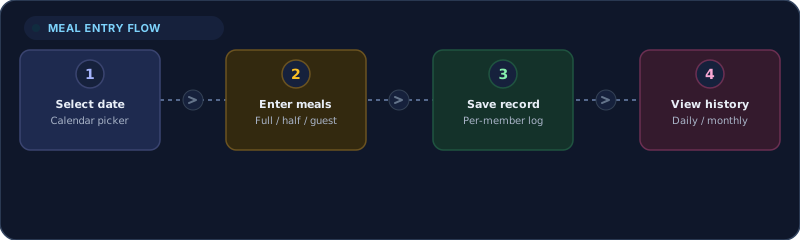
Recording a meal is simple — four steps:
- Select date — use the calendar picker to choose the correct date. This is the most important step. A wrong date means a wrong monthly total.
- Enter meals — enter the meal value using the available controls. Full meals, half meals, guest meals, and adjustments may be available depending on the configuration.
- Save record — the meal is saved per-member, per-date, in the correct mess and month scope.
- View history — reopen the meal history or daily view to confirm the entry.
The golden rule
Enter meals on the day they happen. Trying to remember a whole month's meals at month-end leads to errors. A daily habit of 30 seconds prevents hours of correction later.
What you can track
Depending on the mess configuration, the meal tracker can include:
- Full meals — standard meal count (e.g., 1.0, 2.0)
- Half meals — partial meals (e.g., 0.5)
- Guest meals — meals for visitors or non-members
- Cash-in — cash meal payments
- Time adjustments — late or early meal notifications
- Other adjustments — custom entries as configured
Use the enabled entry controls on the current screen. If a control is disabled, it means the current configuration or your role does not support it.
What you cannot do
- You cannot enter meals for a closed month. Once the manager executes month-end closure, the month is frozen.
- You cannot enter meals for a future month that hasn't been opened yet.
- You cannot enter meals for another member — each member enters their own.
Meal calculation explained
The meal calculation is the foundation of the monthly balance:
- Meal count — the total meals entered per member per day. Summed across all days in the month.
- Meal rate — calculated at month-end: total monthly cost / total meals for all members.
- Individual share — the member's total meals × the meal rate.
- Monthly total — the sum of all daily meal entries for the member across the month.
Example (fictional)
If the monthly cost is 15,000 BDT and the total meals for all members is 300, the meal rate is 50 BDT per meal. A member who ate 40 meals owes 2,000 BDT for meals. Fixed costs (electricity, bua) are added separately, divided equally among members.
The exact calculation depends on the mess configuration. Some messes include all costs in the per-meal rate. Others separate fixed costs from variable costs. Check the current configuration.
Viewing meal history
Daily view
Shows the meals entered for each member on a specific date. Useful for confirming that today's entries are correct.
Monthly view
Shows the total meals for each member across the entire month. Useful for reviewing the month before closure.
Per-member view
Shows an individual member's meal entries across the month. Useful for resolving disputes about meal counts.
After saving
Always reopen the history or daily view after saving a meal. A successful save is the start of verification — confirm the entry appears correctly.
Realtime updates
When a member enters a meal, the update is pushed to all connected clients via Socket.IO. This means:
- The member sees their entry immediately.
- The manager sees the entry in the tracker without refreshing.
- The daily and monthly totals update for everyone.
- The dashboard balance reflects the new meal data.
If realtime stops
If the connection drops, the entry is still saved on the server. Refresh the page to see the updated state. The saved record is the source of truth — not the realtime display.
Editing and correcting meals
Correcting a wrong date
If you entered a meal on the wrong date:
- Open the meal tracker.
- Navigate to the incorrect date.
- Correct the entry or delete it.
- Navigate to the correct date.
- Enter the meal on the correct date.
- Verify both dates show the correct values.
Telling the manager
If the correction affects a shared total (like the monthly total or the per-meal rate), tell the meal manager. The manager needs to know about corrections before month-end closure.
After closure
If the month is already closed, you cannot edit the entry. Contact the manager if a correction is needed after closure. Do not attempt to reverse a month-end closure to fix a meal entry.
Common meal-tracking mistakes
Wrong date
The most common mistake. Always check the date before entering. If the date is wrong, the monthly total is wrong, and the per-meal rate is wrong.
Entering at month-end
Trying to enter 30 days of meals at once leads to errors and forgotten days. Enter meals daily — it takes 30 seconds.
Not verifying after save
After saving, reopen the history or daily view. Confirm the entry appears with the correct date and value. A successful save is not the end of verification.
Pressing save repeatedly
If the save button is slow, do not press it again. Check the history for an existing record. Duplicate entries inflate the meal count and distort the per-meal rate.
Entering for another member
Each member enters their own meals. If you enter meals for another member (even with good intentions), the per-member totals will be wrong. If a member cannot enter their own meals, the manager should help — not another member.
Important: Meal data feeds directly into the per-meal rate and monthly balances. Always verify the date and value before and after saving. Enter meals daily, not at month-end. Your available entry controls and calculation rules depend on your mess configuration and role.


