MessMaster Daily Operations: Meals, Bazar, and Shared Costs Explained
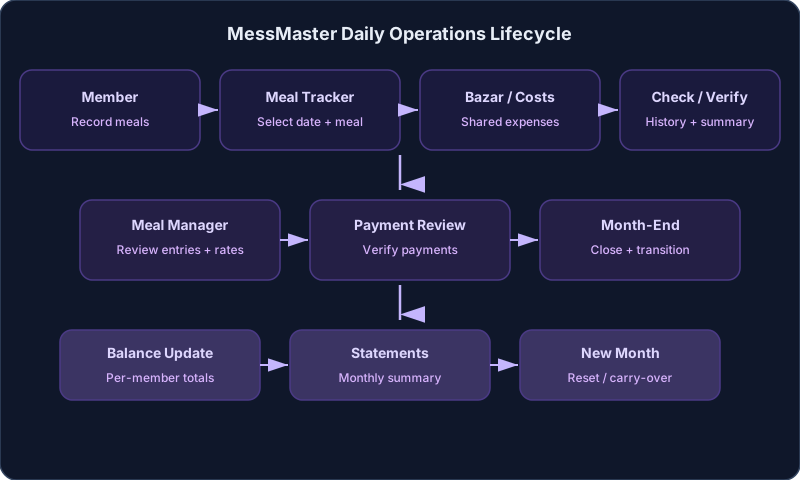
MessMaster works best when a shared mess follows a small daily routine. Record meals on the right dates, keep bazar and shared costs clear, check what was saved, and leave payment…
Contents9 sections
- Member: records meals, checks the current context, and reports mistakes early.
- Meal manager: maintains rates, bazar, shared costs, and review-ready records.
Your available controls and calculations depend on your role, mess status, deployment, and current server data. This guide uses fictional examples and does not replace the values shown in the app.
Guide status: Labels, permissions, calculation rules, rates, costs, exports, and available controls can vary by deployment and mess configuration. Use the current screen as the source to check and verify saved records after important changes.
Before you start
- The correct mess and month are selected.
- You know whether you are working as a member or meal manager.
- Meal, bazar, and cost records are saved in the intended private mess context.
- You are using fictional data in training material.
See the daily routine
A reliable daily routine is short:
- Select the correct mess and month.
- Record the day's meals.
- Add bazar or shared costs when they happen.
- Save and reopen the relevant history or summary.
- Tell the responsible person about a mistake early.
- Leave payment and month-end decisions until the saved records are ready.
The daily routine is not about entering everything into one screen. Each record should have the right date, scope, and responsible role.
Member routine
A member usually records meals, checks the current balance, reads notifications, and reports an incorrect entry. A member should not assume that a visible disabled button is the only permission boundary. The server must also decide whether the action is allowed.
Meal-manager routine
A meal manager usually checks member entries, maintains rates and shared costs, reviews payment records, and prepares the month-end review. A manager should confirm the selected mess before editing a shared record.
Record meals on the correct date
Members should enter meals regularly instead of trying to remember the whole month at the end.
- Open the Meal Tracker.
- Select the correct mess.
- Select the correct month.
- Check the date before entering anything.
- Enter the meal value shown by the available controls.
- Save the change.
- Reopen history or the summary and confirm the result.
The tracker can contain full meals, half meals, guest meals, cash-in, time, and other adjustments depending on the current configuration. Use the enabled entry controls and follow the labels on the current screen.
A saved meal record may be included in the calculation used for the monthly balance, subject to the selected month, current configuration, permissions, and saved server data. If the date is wrong, correct it early and tell the meal manager when the correction affects the shared total.
Quick meal check
Before leaving the tracker, confirm:
- The mess name or code is correct.
- The date is correct.
- The meal value is what you intended.
- The save action completed.
- History or the summary shows the saved record.
Keep bazar and shared costs clear
Bazar and shared costs become easier to review when each record answers four questions: when did it happen, what was purchased, how much did it cost, and who or what scope does it affect?
Bazar record
A meal manager can organize bazar duty and maintain a shopping list. When a bazar record is available, check the date, item, amount, and note before saving.
If the current screen provides an export control, choose the correct month or date and verify the resulting file. Do not assume a specific export format from an old screenshot.
Receipts
Upload a receipt only to the intended private mess context. Use a synthetic or redacted receipt in public training content. Do not expose a real receipt, phone number, payment reference, or address.
Other shared costs
Depending on the current mess configuration, the tracker can include:
- Electricity bills.
- Bua or maid bills.
- Religious costs.
- Extra or shared costs.
- Fines.
These costs do not all work in the same way. Some are shared, some are tied to a category, and some affect a specific member. Read the label and scope before saving.
A cost that looks correct in one view can still be assigned to the wrong mess or month. Confirm the context before editing or deleting.
Check a saved record
A successful save is the start of verification. Use this sequence:
- Save the meal, bazar, or cost record.
- Reopen history, the summary, or the relevant list.
- Confirm the date, amount, category, and scope.
- Refresh once when a financial or shared total is affected.
- Compare the result with the current server-backed value.
If the page shell loads but data is missing, check the connection indicator and the exact error. A blank total does not prove that the mess has no data.
Do not keep pressing Save when the page is slow. First check whether the record already exists.
Hand off to payment review
Daily records become the context for later payment review. Before a member submits a payment, the amount and current balance should be understood from the selected mess and month.
The payment handoff is:
- Daily meals and shared costs are saved.
- The current balance is reviewed.
- The member submits payment details once when needed.
- The payment waits for the manager's review.
- The manager verifies the saved details.
- The approved record updates the relevant balance.
Keep transaction references and receipts private. Do not use example amounts, receiving accounts, or references from an old screenshot.
Prepare the month-end review
Month-end should be a review of saved records, not a race to confirm the final action.
Before the manager starts a transition:
- Check that members entered meals on the correct dates.
- Check bazar records and shared-cost scope.
- Check pending and rejected payments.
- Check fines and adjustments.
- Review balances and statements.
- Verify any export or send action for the correct month.
- Read the full month-transition preview.
A transition can offer different policies, including zero reset, carry over all, or carry positives. Read the current descriptions and consequences. Use a disposable test mess while learning. Do not execute a real transition only to create a screenshot.
After execution, reload and verify the new month and any payout or collection records before telling members that the transition is complete.
Fix daily mistakes
The meal count is wrong
Check the selected date, month, and mess first. Reopen meal history and correct the record early. Tell the manager when the change affects a shared balance.
A bazar item is missing
Check the selected month, item date, amount, and list filters. If the record was saved in another mess context, correct the context before creating a duplicate.
The cost is assigned incorrectly
Read the category and scope. Shared costs, member-specific costs, fines, and receipts can have different rules. Ask the responsible manager before deleting a record that affects a shared calculation.
The page shows zero totals
Refresh once and read the connection or API error. Confirm the selected month. A loaded page shell can still have unavailable or stale data.
The save button is slow
Do not submit repeatedly. Check history or the list for an existing record and wait for the current request to finish.
Use the daily checklists
Member checklist
- Select the correct mess and date.
- Enter meals on time.
- Reopen history after saving.
- Review the current balance.
- Keep payment references private.
- Report mistakes early.
Meal-manager checklist
- Review member entries.
- Keep bazar and shared costs scoped correctly.
- Check pending payments.
- Review balances and statements.
- Keep receipts in the correct private context.
- Delay month transition until the records are ready.
Glossary
- Meal record: a saved entry describing meals used on a date.
- Bazar: shared household shopping or grocery expenses.
- Shared cost: an expense distributed according to the current mess configuration.
- Scope: the mess, month, category, or member affected by a record.
- History: saved records used to confirm that an update persisted.
- Statement: a summary of the records used to calculate a balance.
- Month-end: the review and closing process for a completed month.
- Payment review: the process of checking a submitted payment before crediting the saved result.
Important: This guide is instructional content, not a payment, accounting, legal, or financial guarantee. Your available buttons, permissions, rates, fees, balances, and totals depend on your role, mess status, provider, configuration, and current server data. Verify the live status and saved record before submitting, approving, rejecting, deleting, or closing a month. Never publish a real mess code, referral link, verification code, receipt, transaction reference, or personal contact detail.

