How to Use MessMaster: A Beginner's Guide
MessMaster helps a shared mess keep meal records, bazar costs, payments, balances, and monthly records in one place.
Contents14 sections
- Choose your path
- Create an account or sign in
- Verify your account
- Join an existing mess
- Create a mess as a meal manager
- Learn the main navigation
- Record meals
- Manage rates, bazar, and shared costs
- Submit and review payments
- Read statements and close the month
- Use notifications, chat, referrals, and role transfer
- Common problems
- A simple weekly routine
- Glossary
- Member: joins an existing mess, records meals, checks balances, and submits payments.
- Meal manager: creates or manages a mess, approves members, maintains rates and costs, checks payments, and reviews the month.
Your screen depends on your role, mess membership, deployment, and current server data. A visitor can read public pages, but private tracker data requires the correct signed-in access.
Guide status: This guide is based on the inspected application workflow. Labels, email delivery, payment gating, permissions, totals, and available controls can vary by deployment and mess configuration. Follow the current screen and verify financial changes from saved records. The screenshots and examples use fictional or redacted data.

What you need before starting
- An email address you can open.
- Your profile details.
- If you are joining an existing mess, the mess manager's mess code.
- If you are creating a mess, a name for the mess and a plan for how members will share meals and costs.
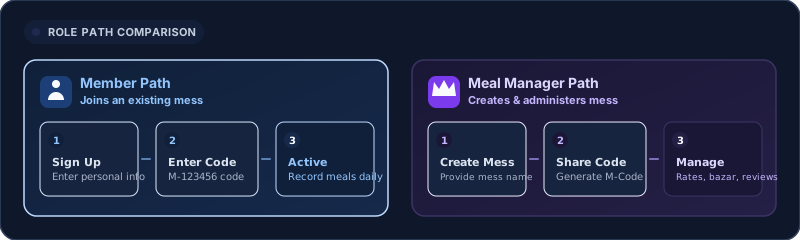
Choose your path
If you are a member
- Create an account at Sign up.
- Verify your email or verification code.
- Sign in at Login.
- Open Profile or the Portal.
- Choose Join a Mess and enter the code given by your meal manager.
- Wait for approval.
- Enter your meals, review your balance, and submit payments when needed.
If you are a meal manager
- Create an account at Sign up.
- Choose the meal manager registration path.
- Enter the mess name and your profile details.
- Verify your email.
- Finish the setup steps and share the generated mess code with the people who should join.
- Approve the correct join requests.
- Maintain meals, rates, bazar costs, payments, and month-end records.
Create an account or sign in
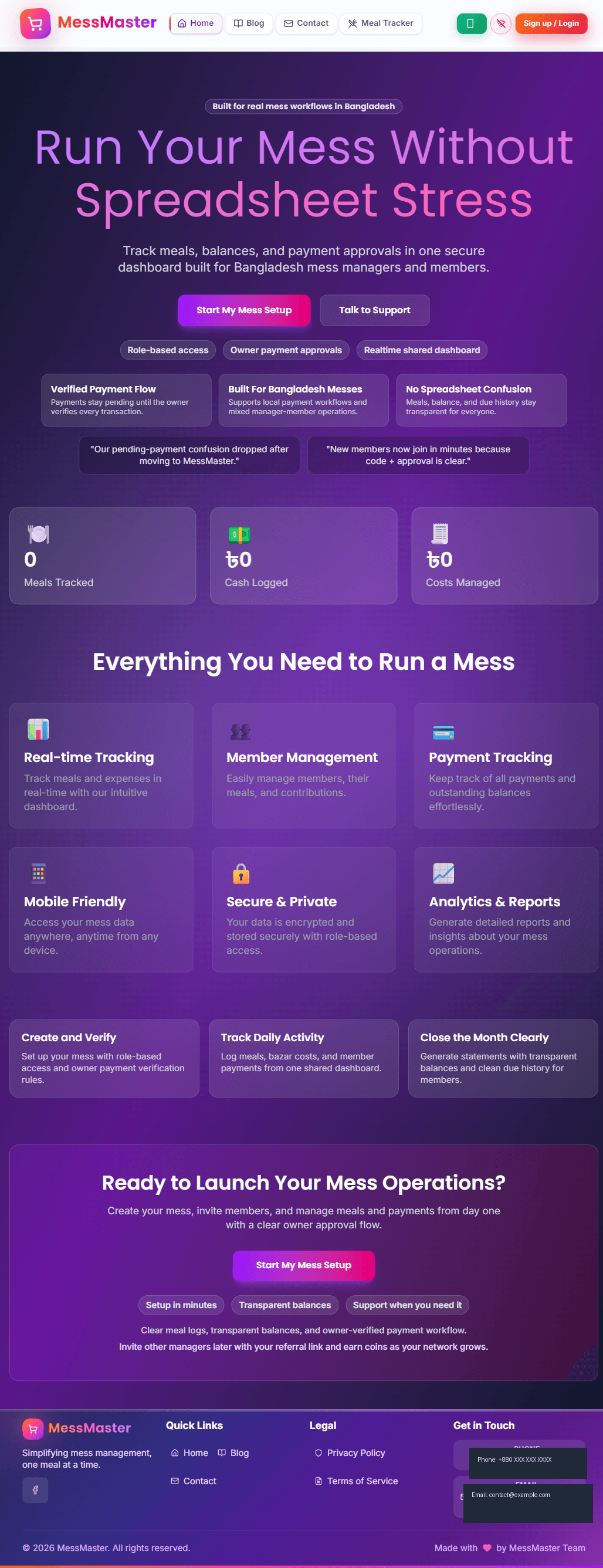
Open the homepage and choose the action that matches your situation:
- Sign up: use this if you do not have an account.
- Login: use this if your account already exists.
- Contact: use this if you need help from the MessMaster team.
New member and meal-manager registration are different. A meal manager may see a Mess Name field because the manager is creating the first mess context. A member normally creates the account first and joins a mess later.
Member registration
Enter the fields shown on your screen. The current registration flow can ask for your full name, room number, religion, phone number, email address, and password. Some fields may be optional depending on the current form state.
Use your real email only when you are creating your own account. In screenshots and examples in this guide, all names, phone numbers, emails, codes, and amounts are fictional.
Meal-manager registration
The meal-manager form includes a mess name. Choose a name that your members will recognize. After verification, check the current status shown in the app. The mess may require an additional payment or approval step, and verification alone does not guarantee activation.
Do not submit the form repeatedly if it is slow. First check the message on the screen and your email. Repeated submissions can create confusion around existing or pending accounts.
Verify your account
MessMaster uses an email-verification dialog after registration. It asks for a six-digit code sent to your email. Enter the digits in order.
The dialog can show:
- The email address being verified.
- Six code boxes.
- A visible countdown.
- A resend action with a short cooldown.
- A success or failure message.
If the code is wrong or no longer accepted:
- Read the exact message.
- Clear and re-enter the newest code.
- Use resend only after the cooldown allows it.
- Do not share the code with another person.
- If the problem continues, return to Contact.
After the verification request succeeds, continue to the sign-in step shown on the screen. Verification confirms the account; it does not by itself decide which mess you can access. Treat the displayed countdown as UI guidance, not as a promise about the backend expiry window.

Join an existing mess
A mess code identifies a specific mess. It is different from your email address, password, profile ID, or membership ID.
- Ask the meal manager for the current mess code.
- Open Profile or the Portal.
- Choose Join a Mess.
- Enter the code exactly as provided.
- Submit the join request once.
- Wait for the meal manager to review it.
A code usually looks like M-123456. The example is fictional. Never publish a real mess code in a public article or screenshot.
What happens after you submit
Entering a correct code creates a request. It does not necessarily give immediate access. The manager may see the request in Pending Join Requests and choose Approve or Reject.
While you are waiting, the membership can show Pending and the action can show Waiting.... After approval, look for the active status and the action that enters the mess.
If you cannot find the mess:
- Check that you copied the code, not the mess name.
- Remove accidental spaces.
- Ask the manager whether the request is still pending.
- Check whether the request was rejected.
Create a mess as a meal manager
If you are responsible for a new mess, open the Profile Hub and choose the create-mess action.
- Enter a clear mess name.
- Submit the form once.
- Wait for the success state.
- Note the generated mess code.
- Use the setup steps to understand how members will join.
- Share the code only with the intended members.
The setup flow explains three useful ideas:
- Your mess has been created.
- Members need the mess code to request access.
- Referral and coin features are separate from the core meal-accounting workflow.
A new mess can show a pending status when the current platform configuration requires payment or approval. Do not assume that every new mess becomes active immediately. Read the status on the mess card and complete the displayed next step.
Approve members
Open the join-request area and review each request carefully. The queue can show details such as the requester's name, email, phone, room, religion, and request time.
Approve only the person you intend to admit. Reject a request if the details are incorrect or the person should not join. Use synthetic data in training screenshots so private details are never published.
Learn the main navigation
The public header normally includes:
- Home: product overview.
- Blog: guides and updates.
- Contact: help and contact information.
- Meal Tracker: available in the authenticated non-owner experience.
The footer includes public links such as Home, Blog, Contact, Privacy Policy, and Terms of Service.
On a phone, the bottom navigation can make Tracker, Profile, and Alerts easier to reach. Your exact navigation depends on whether you are signed in and which role is active.
The canonical routes are:
Record meals
Members should enter meals regularly instead of trying to remember the whole month at the end.
- Open the Meal Tracker.
- Choose the correct mess and month.
- Check the date before entering anything.
- Enter the meals you actually used.
- Save the change.
- Reopen the history or summary and confirm the result.

A saved meal record may be included in the calculation used for the monthly balance, subject to the selected month, current configuration, permissions, and saved server data. If you select the wrong date, correct it early and tell the meal manager when the correction matters to the shared total.
The tracker can contain full meals, half meals, guest meals, cash-in, time, and other adjustments. The exact controls available to you depend on your role and the mess status. Meal-rate, weekly-pattern, and calculation controls are manager-only in the inspected workflow. In the inspected build, use the enabled entry controls rather than treating the monthly grid as an editing path. Other deployments may expose different controls.

Manage rates, bazar, and shared costs
Meal rates
The meal manager may configure full-meal and half-meal rates, weekly patterns, or another rate system. Treat the value currently displayed by the app as the source to check; this guide does not establish or guarantee a rate.
Bazar duty and list
The manager can organize bazar duty and maintain a shopping list. A bazar record is easier to review when it includes the correct date, item, amount, and note.
If the current screen provides an export control, select the correct month or date and verify the resulting file. Do not assume a specific export format from an old screenshot.
Receipts
When the mess uses receipts, upload a synthetic or real receipt only to the intended private mess context. Do not put a real receipt, phone number, payment reference, or address into a public tutorial screenshot.
Other shared costs
Depending on the current mess configuration, the tracker can include:
- Electricity bills.
- Bua or maid bills.
- Religious costs.
- Extra/shared costs.
- Fines.
These costs do not all work in the same way. Some are shared, some are tied to a category, and some affect a specific member. Read the label and scope before saving.
A member should not assume that a disabled button is the only security control. The server must also decide whether the action is allowed. A member may be able to propose a fine, while approval and deletion remain restricted actions. Review only the information required by the current mess process; religion, phone numbers, rooms, and contact details are private and sensitive.

Submit and review payments
Member: submit a payment
Before submitting, confirm:
- The mess is correct.
- A configured payment method is selected.
- The amount is correct.
- The transaction ID is copied accurately.
- You understand any displayed payment charge.
The payment screen can show a base amount, a provider charge, and a total amount. Use only the payment method, receiving number, fee, and total currently displayed for your mess. Do not rely on example fee percentages or phone numbers. The system may submit a fee-inclusive amount while crediting a separate base amount; confirm the saved payment record with the meal manager.
After submitting:
- Save the transaction reference privately.
- Wait for the payment to show its processed status.
- Do not submit the same transaction again.
- Contact the meal manager if the status is incorrect.
If the server reports a duplicate transaction ID, check the existing payment instead of submitting it again.
Meal manager: review a payment
A meal manager may see pending payment notifications for the relevant mess. The manager should compare the member, method, amount, and transaction ID with the actual payment record before approving.
- Approve: the manager verifies the payment; confirm the saved status and credited amount from payment history/server-backed data.
- Reject: the manager records a reason, and the member should correct the issue before trying again.
- Already processed: do not approve or reject the same payment a second time.
Platform payment settings
Platform-owner payment settings are separate from a member paying a mess. They can include global payment enablement, receiving accounts, available methods, discounts, and administrative approval. These settings are not part of the ordinary member path.
Read statements and close the month
A statement brings together the records used to calculate a member's balance. Depending on the screen, it can include meals, cash-in, shared costs, guest meals, fines, adjustments, payments, and the final balance.
Before month-end:
- Check that members entered the correct meals.
- Check bazar and shared-cost records.
- Check pending and rejected payments.
- Check fines and adjustments.
- Review member balances.
- If the current screen provides an export or send control, verify the resulting file or message.
Month-transition choices
The month-end flow can offer different policies. Read the description before choosing one:
- Zero reset: start the next month without carrying the previous balance; review the preview for any payout and collection records created by the transition.
- Carry over all: move positive and negative balances forward according to the displayed policy.
- Carry over positives: move credits forward while creating collections for negative balances where shown; confirm the displayed obligations before proceeding.
The exact choices and consequences should be confirmed on the current month-transition screen. Use a disposable test mess for training. Do not test month transition on a real mess merely to create a screenshot.
The current screen may require an additional confirmation step. Read the exact prompt, review the complete preview, and confirm only after the manager approves the result. After execution, reload and verify the new month and saved payout/collection records before telling members that the transition is complete.

Use notifications, chat, referrals, and role transfer
Notifications
Notifications can explain approvals, payments, balances, broadcasts, or rejection reasons. Open the notification panel and read the exact message before taking another action.
A notification or a realtime connection does not replace checking the saved server value after a financial change.
Chat
Chat can help members and managers ask questions without leaving the app. If messages are missing:
- Check the connection indicator.
- Reopen the conversation.
- Avoid sending the same message repeatedly.
- Check whether the message appears after reconnecting.
Referrals and coins
Referral tools may be available only when the mess and payment configuration meet the eligibility rules. A referral link is not the same as a mess code. Never publish a live referral link.
Role transfer
Role transfer is an advanced, identity-sensitive action. The current meal manager selects an existing member and confirms the transfer with the current meal-manager password. The transfer dialog states that this action cannot be undone. Test it only in a disposable mess and confirm the selected member before submitting.
Use role transfer only after the people involved understand the result. Treat the action as difficult to reverse and test it only with a disposable mess.


Common problems
"I cannot find my mess"
Check the mess code, approval status, and selected profile/mess card. Ask the meal manager whether the request is pending or rejected.
"My meal count is wrong"
Check the selected month and date first. Then review meal history and ask the manager to correct a shared calculation if necessary.
"My payment is not showing"
Check the transaction ID and existing payment history. Do not submit the same transaction again. Ask the meal manager to review the pending or rejected state.
"The page opens but data is missing"
Refresh once, check the connection indicator, and read any error message. A page shell can load even when the API is unavailable, so do not assume that zero totals mean the mess has no records.
"I do not have permission"
Your account may not have the required role or active membership for that mess. Contact the meal manager or use Contact for product support.
"The verification code does not work"
Request a new code after the cooldown, use the newest email, and do not share the code. If the account is already confirmed, return to Login.
A simple weekly routine
Member checklist
- Enter meals on the correct dates.
- Review the current month.
- Check notifications and balance.
- Keep payment references private.
- Report mistakes early.
Meal-manager checklist
- Review member entries.
- Maintain bazar and shared costs.
- Check pending payments.
- Review balances and statements.
- Keep receipts in the correct mess.
- Delay month transition until the records are ready.
Glossary
- Mess: A shared household or group whose meals, expenses, and payments are managed together.
- Member: A person who belongs to a mess and records meals, reviews balances, and makes payments.
- Meal manager: The person responsible for approvals, records, expenses, and monthly review.
- Platform owner: The administrator who manages platform-level approvals and settings.
- Mess code: The identifier used to find or request access to a specific mess.
- Bazar: Shared household shopping or grocery expenses.
- Meal rate: The configured value used in the mess calculation for meals.
- Balance: What a member owes or is owed after meals, shared costs, payments, and adjustments.
- Statement: A summary of the records used to calculate a balance.
- Month-end: The review and closing process for a completed month.
- Transaction reference: An identifier used to match a payment with the correct member and mess.
Important: This guide uses fictional names, codes, payment examples, and screenshots. It is instructional content, not a payment, accounting, legal, or financial guarantee. Your available buttons, permissions, fees, payment status, balances, and totals depend on your role, mess status, provider, configuration, and current server data. Verify the live status and saved record in the app before submitting, approving, rejecting, closing a month, or telling another person that a financial change is complete. Never publish a real mess code, referral link, verification code, receipt, transaction reference, or personal contact detail.


