MessMaster Payments and Month-End: A Clear Review Guide
MessMaster connects payment review and month-end records so a shared mess can confirm what was submitted, what was approved, and what still needs attention.
Contents9 sections
- Member: checks the current amount and payment method, submits a payment once, and keeps the transaction reference private.
- Meal manager: checks the saved payment details, approves or rejects the payment, reviews the month, and confirms the transition result.
A payment notification is useful, but it is not the final source of truth. Confirm important financial changes from the saved record and the current screen. The examples in this guide are instructional and use fictional data.
Guide status: Payment methods, charges, receiving details, permissions, statuses, month-transition choices, and available controls can vary by deployment, provider, mess configuration, and current server data. Follow the values shown in the app. Do not use example amounts or references as real payment instructions.
Before you start
- The correct mess and month are selected.
- Meal, bazar, and shared-cost records are saved or ready for review.
- You can access the payment method and transaction reference shown by the current screen.
- You are using a disposable test mess when you are learning month transition.
Understand the review path
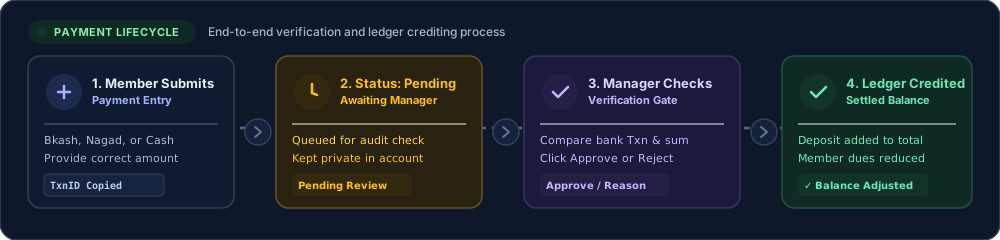
Payment review is easier when each state has one clear purpose:
- Member submits: the member selects the correct context, enters the amount and transaction reference, and saves the payment once.
- Payment is pending: the submission is waiting for the meal manager's review. Do not submit the same transaction again while it is pending.
- Manager verifies: the meal manager compares the member, method, amount, and transaction reference with the available payment record.
- Ledger is credited: after approval, reload the relevant history or balance and confirm the saved result.
Use the current status shown by the app. A successful button response or a notification does not replace checking the saved record.
Submit a payment carefully
Before submitting, confirm the following from the current payment screen:
- The selected mess is correct.
- The selected month or payment context is correct.
- The configured payment method is the one you intend to use.
- The amount is correct.
- Any displayed charge or total is understood.
- The transaction reference is copied accurately.
- Open the payment action for the correct mess.
- Read the current amount, method, receiving details, and any displayed charge.
- Enter the transaction reference exactly as required.
- Review every field before submitting.
- Submit once.
- Keep the reference private and wait for the displayed status.
Do not copy a fee, account number, amount, or transaction reference from an old screenshot. Payment settings can change. Use only the information currently shown for your mess.
If the transaction already exists
If the server reports a duplicate transaction reference, do not submit it again. Check payment history first and ask the meal manager to review the existing record. Repeated submissions make the review trail harder to understand.
Review a pending payment
A pending payment needs a review, not another submission. The meal manager should compare the saved record with the available payment evidence before choosing an action.
Review these fields together:
- Member and mess context.
- Selected payment method.
- Submitted amount.
- Transaction reference.
- Current payment status.
- Any displayed note or rejection reason.
Choose Approve only when the record matches the payment evidence available to the manager. Choose Reject when the details are incorrect or the payment cannot be confirmed. Read the exact reason shown by the current screen and tell the member what needs to be corrected.
After either action, read the saved status again. If the notification and payment history disagree, treat the persisted payment record as the item to investigate. Do not approve or reject the same processed payment a second time.
If a payment is rejected
- Read the rejection reason exactly.
- Check whether the amount, method, or transaction reference is wrong.
- Correct the issue using the current payment instructions.
- Submit a new payment only when the previous record is understood and the app allows it.
- Keep both references private.
Prepare the month-end review
Month-end should be a review of saved records, not a race to press the final button. Before a meal manager starts the transition, check:
- Members entered meals on the correct dates.
- Bazar records include the correct date, item, amount, and note where applicable.
- Shared costs, receipts, fines, and adjustments are in the correct scope.
- Pending and rejected payments have been investigated.
- Approved payments appear in the relevant payment history.
- Member balances and statements have been reviewed.
- Any available export or send action has been checked for the correct month.
If something is missing, stop and correct the record before continuing. A zero, blank, or stale value can also indicate an unavailable API or the wrong selected month. Do not assume that an empty display means the mess has no records.
Choose a transition policy
The month-transition screen can present policies with different consequences. Read the current description and the complete preview before choosing one:
- Zero reset: close the previous balance and start the next month without carrying the previous balance forward. Review any payout or collection records shown by the preview.
- Carry over all: move positive and negative balances forward according to the displayed policy.
- Carry positives: move positive balances forward while collecting negative balances where the current preview shows that result.
There is no universal choice for every mess. The correct policy depends on the agreement between members and the current configuration. Use a disposable test mess for learning. Do not execute a transition on a real mess just to create a screenshot.
The current screen may require an additional confirmation step. Read the exact prompt, inspect the full preview, and ask the responsible manager to confirm the result before execution.
Verify the new month
After the transition completes:
- Reload the page or reopen the month view.
- Confirm that the new month is selected.
- Check that the member balances and statements reflect the chosen policy.
- Review any payout, collection, or adjustment records created by the transition.
- Confirm that the previous month is not being edited accidentally.
- Tell members the transition is complete only after the saved records match the preview.
If the page shell loads but totals or history are missing, check the connection indicator and current error message. A visual success message alone is not enough for a financial change.
Use the member and manager checklists
Member checklist
- Check the mess before entering payment details.
- Read the current amount and method.
- Copy the transaction reference accurately.
- Submit once and wait for the status.
- Keep payment references and receipts private.
- Check the saved balance after approval.
- Tell the manager early if a meal or cost record is wrong.
Meal-manager checklist
- Check member, method, amount, and transaction reference together.
- Review pending and rejected records before month-end.
- Confirm balances and statements for the correct month.
- Inspect the full transition preview.
- Use a disposable mess for training.
- Reload and verify saved records after execution.
- Avoid announcing completion before the new month is confirmed.
Avoid common review mistakes
Submitting the same payment twice
Check payment history and the transaction reference before submitting again. A pending state is not an instruction to create another payment.
Reviewing the wrong month
Confirm the month selector before reading totals, statements, or payment history. Correct a wrong selection before making a financial decision.
Treating a notification as proof
A notification can be delayed or incomplete. Verify the server-backed payment or balance record after an important action.
Testing on a real mess
Month transition changes shared records. Use a disposable test mess when learning the flow and review the complete preview before any real execution.
Publishing private payment information
Never publish a real transaction reference, receipt, receiving account, verification code, phone number, or mess code. Use fictional or redacted data in tutorials.
Glossary
- Pending: a submitted payment or request that still needs review.
- Transaction reference: an identifier used to match a payment with the correct member and mess.
- Payment history: saved records showing the status and details of submitted payments.
- Statement: a summary of records used to calculate a member's balance.
- Balance: what a member owes or is owed after meals, costs, payments, and adjustments.
- Month-end: the review and closing process for a completed month.
- Month transition: the action that applies a selected policy to the previous and next month.
- Payout: a record showing money to be returned or settled where the current policy creates one.
- Collection: a record showing an amount to be collected where the current policy creates one.
Important: This guide is instructional content, not a payment, accounting, legal, or financial guarantee. Your available methods, charges, permissions, statuses, balances, and totals depend on your role, mess status, provider, configuration, and current server data. Verify the live status and saved record before submitting, approving, rejecting, or closing a month. Never publish a real payment reference, receipt, verification code, mess code, or personal contact detail.

