MessMaster Onboarding: Member and Meal Manager Paths Explained
MessMaster is easier to use when you start in the correct role path. This guide shows what happens after account creation, how a member joins an existing mess, how a meal manager…
Contents9 sections
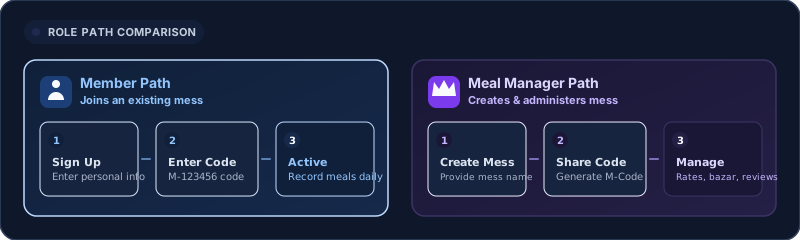
- Member: joins an existing mess, waits for approval, and records meals.
- Meal manager: creates a mess, shares the mess code, approves members, and manages the shared records.
Your available screens depend on your role, membership, mess status, deployment, and current server data. The examples in this guide are fictional.
Guide status: Labels, verification delivery, permissions, payment gating, statuses, and available controls can vary by deployment and mess configuration. Follow the current screen and verify saved records. Never publish a real mess code, verification code, or personal detail.
Before you start
- An email address you can open.
- Your profile details.
- A current mess code if you are joining an existing mess.
- A mess name and a plan for shared meals and costs if you are creating a mess.
Choose your path
Use the path that matches your responsibility. The two paths start with account creation but diverge when the app asks whether you are joining an existing mess or creating one.
Member path
- Create an account.
- Verify the account.
- Sign in.
- Enter the mess code supplied by the meal manager.
- Wait for approval.
- Enter meals and review the shared balance.
Meal manager path
- Create an account through the meal-manager path.
- Verify the account.
- Create the mess and note the generated code.
- Share the code only with intended members.
- Review and approve join requests.
- Maintain the records used by the shared mess.
Do not choose a path based only on which button looks convenient. Creating a mess and joining a mess produce different responsibilities and different follow-up screens.
Create your account and verify it
Create the account once and complete the verification step before trying to join or manage a mess.
- Open the current sign-up page.
- Enter the fields shown by the form.
- Use your own email address when creating your own account.
- Submit the form once.
- Open the verification message and enter the newest code.
- Return to the sign-in step shown by the app.
The verification dialog can show an email address, six code boxes, a countdown, a resend action, and a success or failure message. If a code fails, use the newest message and follow the current cooldown. Do not share a verification code with another person.
Verification confirms the account. It does not automatically give access to a specific mess. The membership or mess context still needs to be selected and, for a member, approved.
Join an existing mess
A member needs the current mess code from the meal manager. A fictional example can look like M-123456. It is not a real code.
- Ask the meal manager for the current code privately.
- Open Profile or the Portal.
- Choose Join a Mess.
- Enter the code exactly as provided.
- Submit the request once.
- Wait for the meal manager to review it.
Entering a valid code creates a request. It does not necessarily provide immediate access. The request can show Pending or Waiting... until the manager reviews it.
What the member sees next
Look for a status that explains whether the request is pending, active, or rejected. If the mess cannot be found:
- Check that you entered the mess code, not the mess name.
- Remove accidental spaces.
- Ask whether the manager has reviewed the request.
- Check whether the request was rejected.
- Confirm that you are looking at the correct profile or mess card.
Do not submit repeated join requests while the first request is still pending.
Create a mess and approve members
A meal manager creates the first mess context and then controls which join requests are admitted.
- Open the Profile Hub or the current create-mess action.
- Enter a clear mess name.
- Submit the form once.
- Wait for the success or pending status.
- Note the generated mess code.
- Share it only with intended members.
- Open the join-request area when requests arrive.
A new mess can require an additional approval or payment step depending on the current platform configuration. Read the status on the mess card instead of assuming that creation means immediate activation.
Approve a member carefully
Review the request details and approve only the person you intend to admit. The current queue can show identity and profile details. Use synthetic data in training material and review only what is needed for the current mess process.
After approval, confirm that the member appears in the active context. If the status does not change, reload once, read the exact message, and avoid approving the same request repeatedly.
Find your working context
After approval or mess creation, open the context that matches the work you want to do.
- Member: choose the active mess and open the Meal Tracker.
- Meal manager: choose the active mess and open the manager controls for members, rates, bazar, payments, and month-end review.
A user can belong to more than one mess. Do not assume that the first visible mess is always the correct one. Confirm the mess code or mess name before saving a meal, cost, payment, or approval decision.
If the page shell loads but the records are missing, check the connection indicator, selected context, current month, and any displayed error. A blank total does not prove that the mess has no data.
Record your first meal
Members should record meals on the correct dates rather than waiting until the end of the month.
- Open the Meal Tracker.
- Select the correct mess.
- Select the correct month and date.
- Enter the meal value shown by the available controls.
- Save the change.
- Reopen history or the summary and confirm the saved result.
The available controls can depend on role, mess status, and deployment. Use enabled entry controls and do not treat a disabled button as the only security boundary. The server must also decide whether an action is allowed.
If the meal count is wrong, correct it early and tell the manager when the correction affects a shared calculation.
Continue to payments and month-end
Onboarding is complete when the user can work in the correct context, not merely when the account is verified.
A member's next routine is usually:
- Record meals on the correct dates.
- Review the current balance.
- Read notifications.
- Submit a payment only when the current screen requires it.
- Keep payment references private.
A manager's next routine is usually:
- Review member entries.
- Maintain rates and shared costs.
- Review pending payments.
- Check statements and balances.
- Choose a month-transition policy only after the records are ready.
Payment review and month-end are separate from sign-up. Continue with the current payment and month-transition instructions rather than relying on a screenshot or remembered amount.
Fix the common first-day problems
I verified but cannot enter the mess
Verification confirms the account, not membership. Check the selected profile, mess code, request status, and manager approval.
I entered the code but nothing changed
Wait for the request status, reload once, and ask the manager whether the request is still pending. Do not submit the same request repeatedly.
I created a mess but it is not active
Read the mess status and complete the displayed approval or payment step. Creation does not guarantee activation in every deployment.
I cannot see the Meal Tracker
Check that you are signed in, the active role is correct, the selected mess is active, and the current account has the required membership.
My first meal is missing
Confirm the date, month, and mess context. Reopen history or the summary after saving. If the API is unavailable, report the exact error instead of assuming that the total is zero.
I do not know which code to share
Use the current generated mess code shown by the app. Never copy a code from an old screenshot or publish a live code in a public guide.
Glossary
- Member: a person who joins a mess, records meals, reviews balances, and submits payments.
- Meal manager: the person who creates or manages a mess and reviews its shared records.
- Mess: a shared household or group whose meals, expenses, and payments are managed together.
- Mess code: the identifier used to request access to a specific mess.
- Join request: a member's request to enter an existing mess.
- Pending: a status showing that a request or payment still needs review.
- Active: a status showing that the current account or mess context can be used.
- Meal Tracker: the area used to record meals and review related totals.
- Working context: the selected mess, role, and month used for the current action.
Important: This guide is instructional content, not an authentication, payment, accounting, legal, or financial guarantee. Your available buttons, permissions, statuses, fees, balances, and totals depend on your role, mess status, provider, configuration, and current server data. Verify live status and saved records before joining, approving, recording, paying, or closing a month. Never publish a real mess code, referral link, verification code, receipt, transaction reference, or personal contact detail.


