Managing Bazar Costs and Monthly Expenses with MessMaster
Bazar costs are where most messes lose money. Not because people are stealing — because nobody is tracking properly. Rice prices fluctuate.
Contents8 sections
- Member: checks cost summaries and knows what they owe without asking the manager.
- Meal manager: records every cost, assigns it to the right category, and lets the system calculate per-meal rates automatically.
Your available controls and calculations depend on your role, mess status, deployment, and current server data. This guide uses fictional examples and does not replace the values shown in the app.
Guide status: Labels, permissions, calculation rules, rates, costs, exports, and available controls can vary by deployment and mess configuration. Use the current screen as the source to check and verify saved records after important changes.
Before you start
- You are the meal manager or a member with cost-viewing access.
- You know which mess and month you are recording costs for.
- You understand that each cost record needs a date, category, amount, and scope.
The cost lifecycle
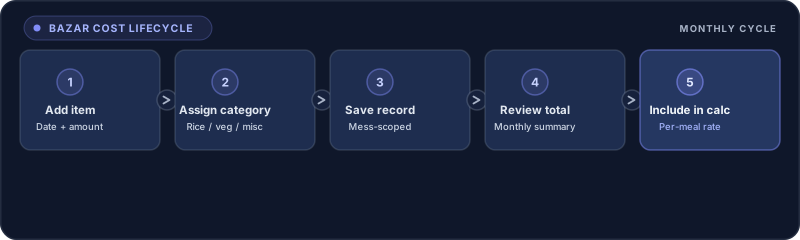
Every cost in MessMaster follows the same lifecycle:
- Add item — enter the date, item name, and amount.
- Assign category — choose bazar, electricity, bua, extra, or fine.
- Save record — the record is saved in the correct mess and month scope.
- Review total — the monthly cost summary updates automatically.
- Include in calc — the total cost feeds into the per-meal rate calculation.
A saved cost is not just a number. It's a scoped, categorized, dated record that feeds into the monthly calculation. The manager controls what goes in; the system controls how it's calculated.
Cost categories
MessMaster supports several cost categories. Each category has its own scope and behavior:
- Bazar items — groceries and daily shopping. Rice, vegetables, fish, spices, oil. The most common and frequent cost.
- Electricity — utility bills. May be monthly or quarterly depending on the mess.
- Bua / maid — service bills for domestic help. Often a fixed monthly amount.
- Extra costs — miscellaneous shared expenses. Cooking gas, transport, cleaning supplies.
- Fines — penalties for violations. Member-specific, not shared.
- Religious costs — special occasion expenses. Shared among members.
Category behavior
Not all categories work the same way:
- Bazar and extra costs are typically shared equally among members.
- Electricity and bua are fixed costs shared equally.
- Fines are member-specific — the fined member pays, not the whole mess.
- Religious costs depend on the mess's custom configuration.
Read the label and scope on the current screen before saving. A cost that looks correct in one view can still be assigned to the wrong mess or month.
Recording a bazar entry
- Open the Bazar section.
- Select the correct mess and month.
- Check the date — enter the actual purchase date, not today's date.
- Enter the item name (e.g., "Rice 10kg").
- Enter the amount in BDT.
- Optionally add a note (e.g., "From Rahim Store").
- Save the record.
- Reopen the bazar list and confirm the entry.
Bazar duty
The meal manager can assign bazar duty to specific members on a rotating basis. The duty schedule helps members know whose turn it is to shop, but the manager is responsible for ensuring the record is entered.
Shopping list
The manager can maintain a shopping list within the bazar section. Members can add items they need. The list is a planning tool — it does not automatically create cost records.
Shared costs and bills
Electricity bill
- Open the Electricity Bill section.
- Enter the bill amount and date.
- Save the record.
- The system divides the amount by the number of active members.
- Each member's share is added to their monthly cost.
Bua / maid bill
Similar to electricity — a fixed monthly amount shared equally among members.
Extra costs
- Open the Extra Cost section.
- Enter the description, amount, and date.
- Choose whether it's shared or member-specific.
- Save and verify.
Fines
Fines are different — they are assigned to a specific member, not shared. The fined member's balance is adjusted directly.
Receipts and privacy
Uploading a receipt
When the screen provides a receipt upload option:
- Upload only to the correct private mess context.
- Use a synthetic or redacted receipt in training or public content.
- Do not expose real receipts with phone numbers, addresses, or payment references.
Privacy rules
- Never publish a real mess code, receipt, or transaction reference.
- Never share a receipt containing personal contact details.
- In training material, use fictional data only.
How costs affect the per-meal rate
The per-meal rate is calculated as:
- Total monthly cost = bazar + electricity + bua + extra costs + religious costs
- Total meals = sum of all meal entries for all members in the month
- Per-meal rate = total monthly cost / total meals
- Individual share = total monthly cost / number of active members (for fixed costs)
- Member balance = (meals eaten × per-meal rate) + individual share of fixed costs + fines
The exact calculation formula depends on the mess configuration. Some messes include all costs in the per-meal rate. Others separate fixed costs (electricity, bua) from variable costs (bazar). Check the current configuration.
Reviewing and exporting costs
Monthly summary
The monthly cost summary shows:
- Total bazar cost
- Total electricity
- Total bua
- Total extra costs
- Total fines
- Grand total
Export
If the screen provides an export control, choose the correct month and verify the resulting file. Do not assume a specific export format from an old screenshot.
Common cost-tracking mistakes
Entering the wrong date
The most common mistake. If you enter today's date for a purchase made three days ago, the monthly summary will show the cost in the wrong period. Always check the date.
Wrong mess or month
If you have access to multiple messes, confirm you're entering costs in the correct mess. A cost saved in the wrong mess is not automatically transferred.
Missing category
Every cost needs a category. An uncategorized cost may not be included in the correct calculation. Read the label before saving.
Duplicate entries
If the save button is slow, do not press it again. Check the bazar list for an existing record before creating a duplicate.
Not verifying after save
After saving a cost, reopen the list or summary and confirm the entry. A successful save is the start of verification, not the end.
Important: Cost records feed directly into the per-meal rate and member balances. Always verify the date, category, scope, and amount before and after saving. Never publish real receipts, mess codes, or personal contact details. Your available categories and calculation rules depend on your mess configuration.


